The Audio-to-Haptics feature allows you to experience haptic feedback even in games, videos, or music that don’t provide native bHaptics support. Depending on your setup, you can connect your device either wirelessly or through a wired connection.
TABLE OF CONTENTS
Set up Wireless Audio-to-Haptics (Windows PC & Mac Only)
You can use Wireless Audio-to-Haptics on your PC to convert audio signals from any content, such as SteamVR titles, PC games, videos, or music, into haptic feedback.
To use Wireless Audio-to-Haptics:
- Turn on your bHaptics device and connect it to the bHaptics Player for PC.
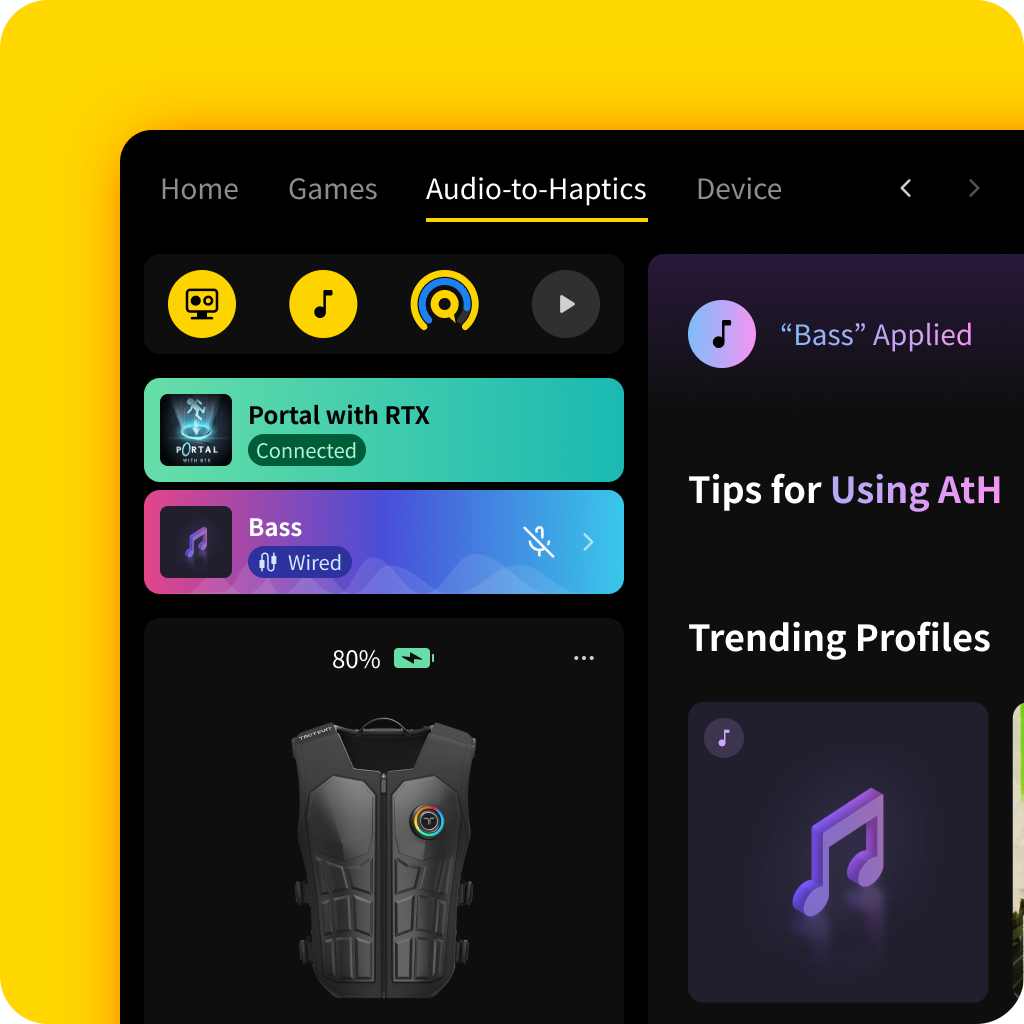
- In the Mini Player, click the music note icon to enable Audio-to-Haptics.
- Navigate to the Audio-to-Haptics tab, browse the available Audio-to-Haptic profiles, and select a profile (for example, Bass) from the list to start feeling haptic feedback.
- Enjoy your immersive audio-based haptic experience.
Set up Connection for Wired Audio-to-Haptics
Some bHaptics devices, such as the TactSuit series, include an audio port that lets you experience Wired Audio-to-Haptics. This setup requires a wired connection between your TactSuit, your content device (for example, a Quest, PC, or console), and your headphones.
To use Wired Audio-to-Haptics:
- Turn on your bHaptics device and connect it to the bHaptics Player.
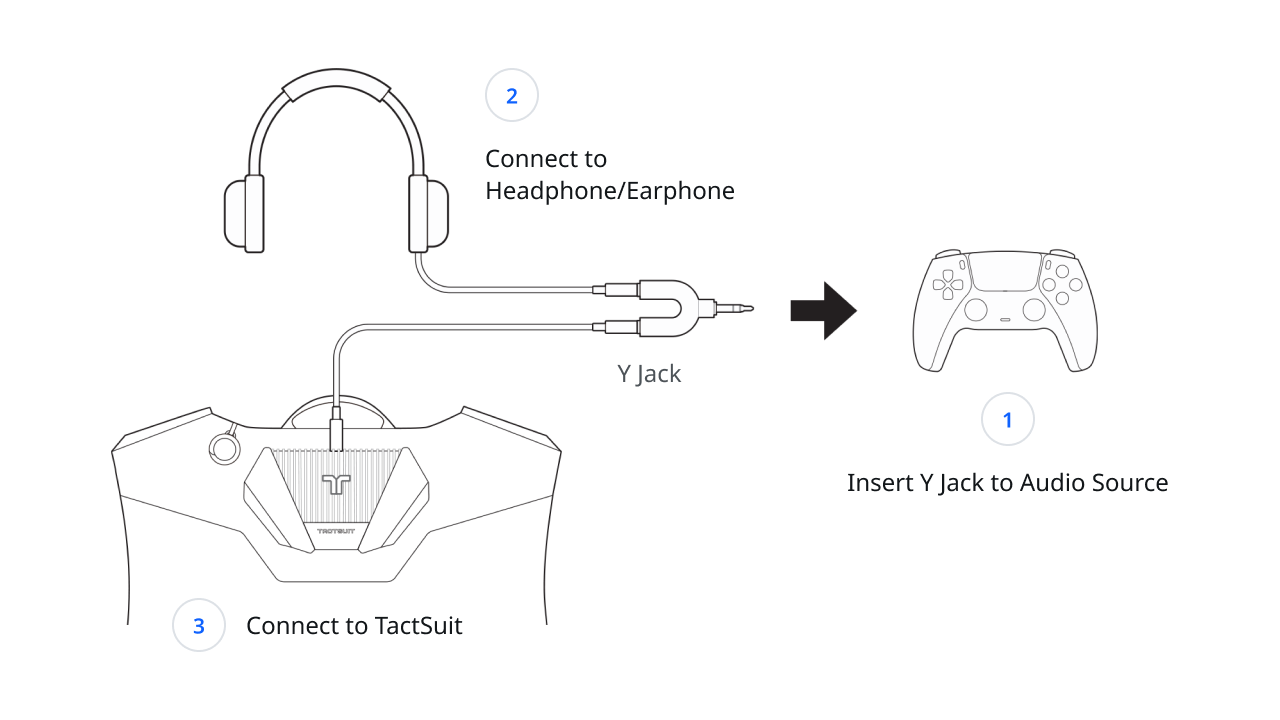
- Take the audio cable and Y-jack splitter included with your TactSuit.
- Plug the Y-jack into the audio port of your Quest, PC, or console.
- Plug one end of the audio cable into the Y-jack splitter and the other end into your TactSuit.
- Once connected, the back LED will light up purple to indicate activation.
- For TactSuit Pro, the Front Controller will also light up.
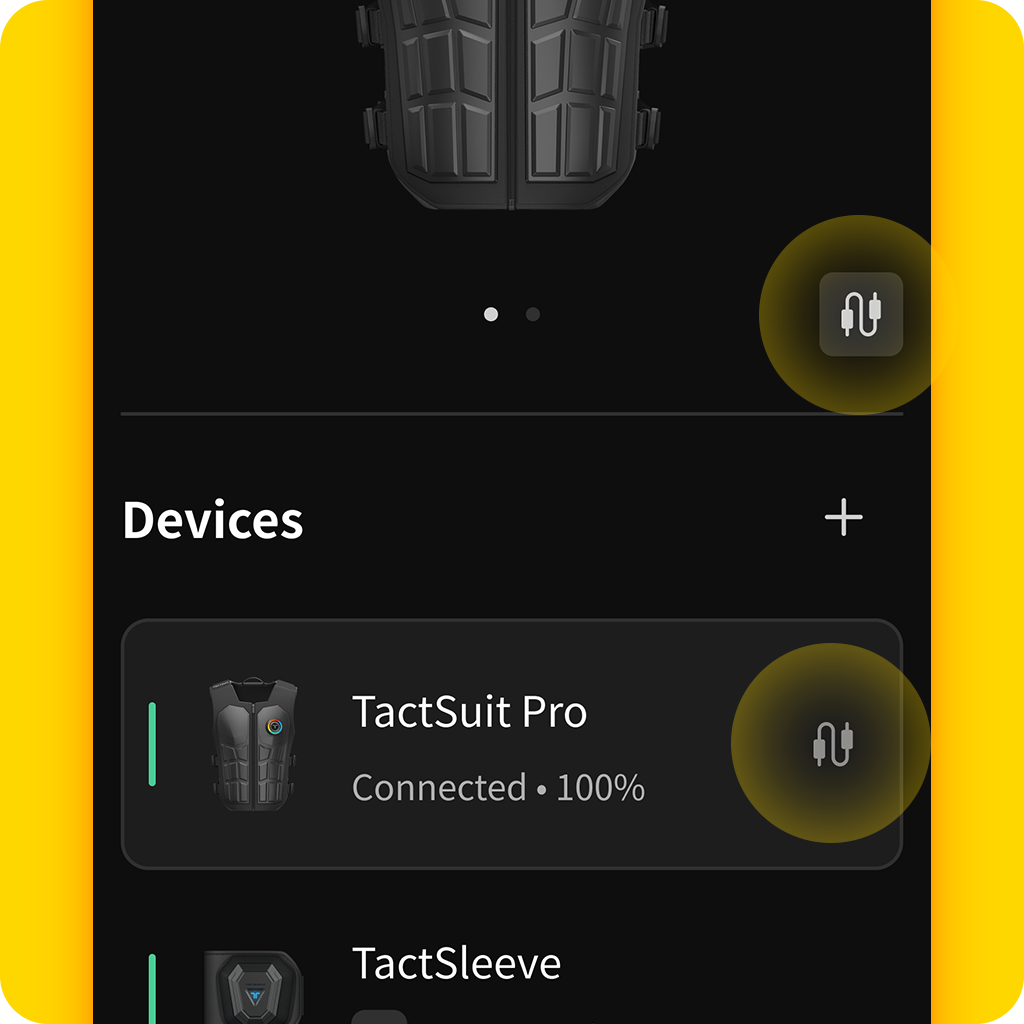
- Once the audio port detects the inserted cable, the device will automatically switch to Wired Audio-to-Haptics mode, and an audio cable icon will appear on the bHaptics Player.
- Connect your headphones to the other side of the Y-jack splitter.
- Open your audio content. As the content begins, the audio signal is automatically detected and converted into haptic feedback.
- Enjoy your immersive audio-based haptic experience.
Note: If you are not feeling any haptic feedback, make sure the correct Audio-to-Haptics profile is selected in the bHaptics Player and no audio cable or splitter is interfering with wireless mode.
Was this article helpful?
That’s Great!
Thank you for your feedback
Sorry! We couldn't be helpful
Thank you for your feedback
Feedback sent
We appreciate your effort and will try to fix the article
Still have problems?
If you couldn’t find what you were looking for, feel free to contact our support team.