TABLE OF CONTENTS
- Choosing a Profile for Wired Audio-to-Haptics
- Explore Community-Made Profiles
- On-Device Profiles for Wired Audio-to-Haptics
- Selecting On-Device Profiles Using the TactSuit Pro Front Controller
Choosing a Profile for Audio-to-Haptics
A profile determines how the TactSuit responds to the audio signals it receives. It’s essential for tailoring the haptic feedback to your personal preference or the specific demands of the content you are experiencing. Currently, profiles for Wired Audio-to-Haptics can only be selected via bHaptics Player for PC. This feature will be available soon on bHaptics Player Mobile and Quest apps. Once connected, navigate to the left menu and select Audio-to-Haptics > Wired ATH.
- At the top, you’ll see the Audio Signal panel, providing a real-time view of the incoming audio signals.
- On the left, you’ll find the Profile list, where you can browse and select profiles for Wired Audio-to-Haptics.
- On the right, you’ll see the On-Device Profiles section, which displays profiles stored directly on your TactSuit.
- Browse through the profiles and choose one that best matches your content. For first-time use, a set of preset profiles is available.
- Click on a profile, and it will be applied instantly.
Explore Community-Made Profiles
In the Explore section of the bHaptics Player, you can find user-created profiles shared by the community.
- Click on Explore.
- Browse the available profiles.
- Click on a profile to view its details. You can see how different sound frequency bands are converted into haptic feedback and which feedback points are activated.
- If you like the profile, click Add, and it will be saved to your library.
- You can now apply this profile to Wired Audio-to-Haptics or store it directly on your device for convenient access.
On-Device Profiles for Audio-to-Haptics
You can save profiles directly to your TactSuit without needing to connect to a PC. Each TactSuit device offers six profile slots, allowing you to save different profiles based on your preferences.
To save a profile:
- Open the bHaptics Player and navigate to Audio-to-Haptics > Wired ATH.
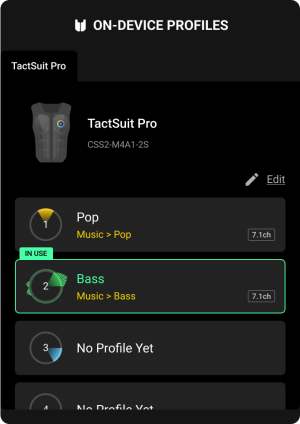
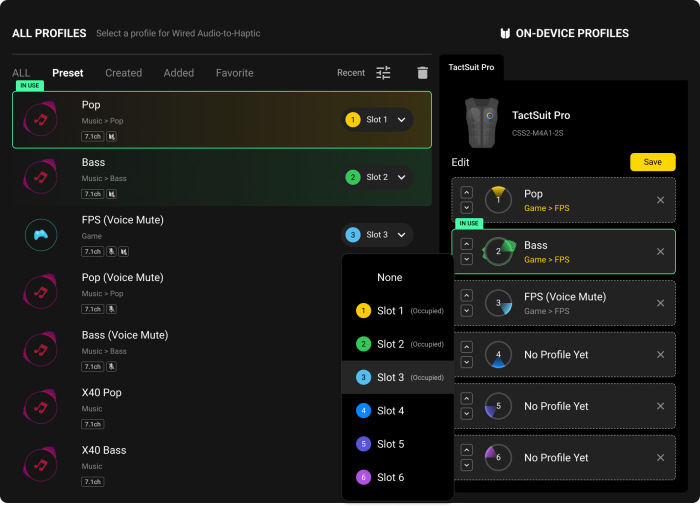
- Go to the ‘On-Device Profiles’ section located on the right side of the screen and click ‘Edit’.
- Find the profile you want to save from the profile list on the left.
- Select the slot where you want to save it.
- Click the Save button to store the profile on your device.
Selecting On-Device Audio Profiles Using the TactSuit Pro Front Controller
If you are using TactSuit Pro, you can switch profiles directly from the device using the Front Controller Wheel.
- Click the Power Button once, then press and hold it to enter Wired Audio-to-Haptics selection mode.
- Rotate the Controller Wheel to choose the profile you want.
- Click the Controller Wheel to apply the selected profile.
Was this article helpful?
That’s Great!
Thank you for your feedback
Sorry! We couldn't be helpful
Thank you for your feedback
Feedback sent
We appreciate your effort and will try to fix the article
Still have problems?
If you couldn’t find what you were looking for, feel free to contact our support team.