If your Meta Quest title doesn’t provide native support, you can still enjoy it with TactSuit X40 by using our Audio-to-Haptics feature.
⚠️ When using the product with an audio cable and wired headphones, the cable may wrap around your body, which can cause a fall or strangulation. Avoid vigorous movements and pay close attention to the position of the cables and any surrounding objects that could get caught in themSet up a wired connection
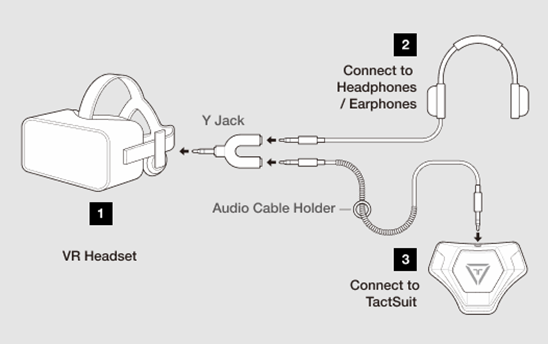
Please follow the steps below to set up a wired connection between TactSuit X40 and your Meta Quest headset.
- Prepare an audio cable, a Y-jack, wired headphones, and your Meta Quest headset.
(The audio cable and Y-jack are included in the accessories box.) - Plug the Y-jack into the audio output of your Meta Quest headset.
- Connect your wired headphones to the Y-jack.
- Connect one end of the audio cable to the Y-jack and the other end to your TactSuit X40.
- You will see the LED indicator turn purple when the audio cable is properly connected to the TactSuit X40.
Select Audio-to-Haptics profile
Once Wired Audio-to-Haptic connection is completed, you’ll immediately receive feedback which is converted from the audio signal of the content.
For the optimal Audio-to-Haptic experience, it is essnetial to select the profile that best fits to characteristics of your content.
Please follow the steps below to select or change the profile :
- Pair your device to bHaptics Player Mobile app.
- Go to ATH tab, and explore the full list of your Audio-to-Haptic profiles by horizontally scrolling “AtH Profiles” section.
- When you find a profile that suits your content, simply stop scrolling to select it.
Was this article helpful?
That’s Great!
Thank you for your feedback
Sorry! We couldn't be helpful
Thank you for your feedback
Feedback sent
We appreciate your effort and will try to fix the article
Still have problems?
If you couldn’t find what you were looking for, feel free to contact our support team.