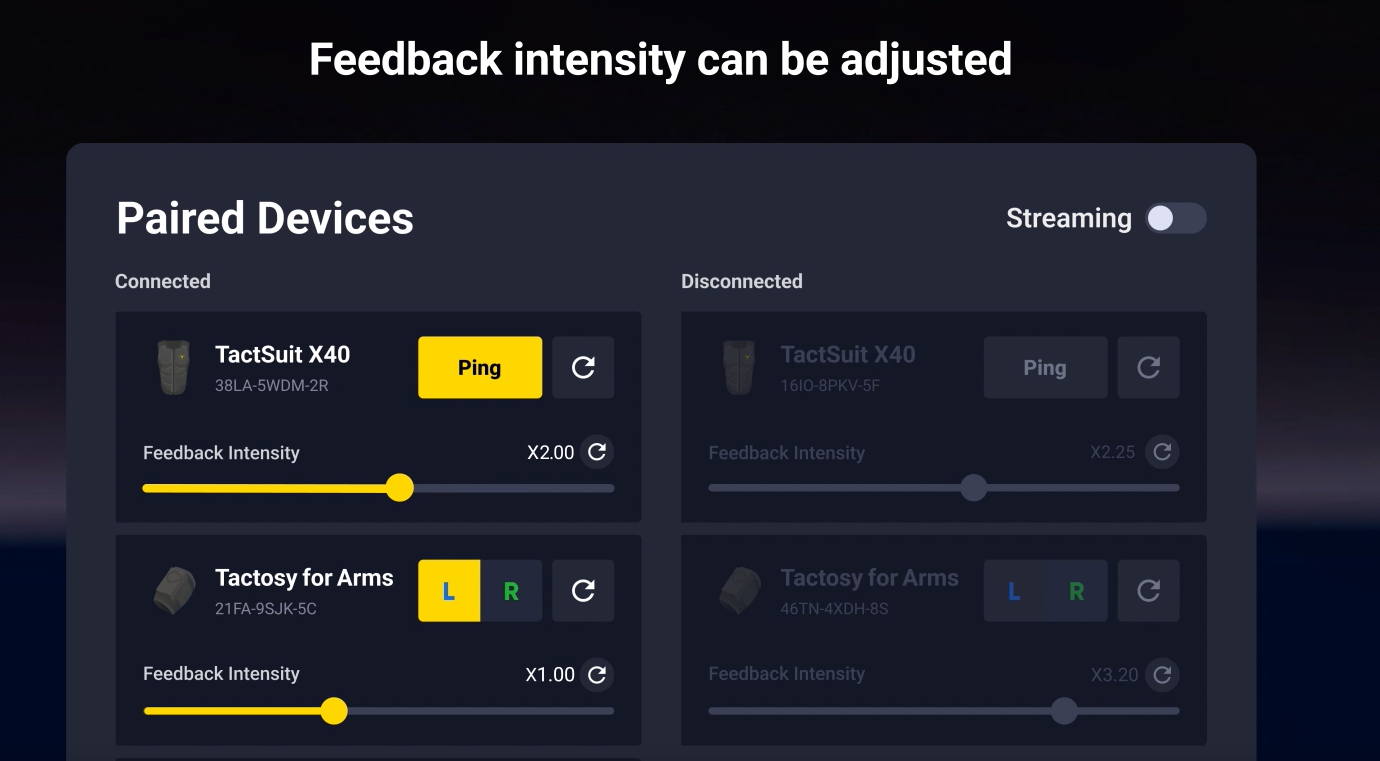
You can customize the feedback intensity of your Tactosy for Arms for each Natively Supported Content using the bHaptics Player. Adjust the intensity to match your personal preference and enjoy a more comfortable haptic experience.
Adjusting on Meta Quest
- Turn on your Tactosy for Arms and pair it with your Meta Quest headset via Quick Settings > Bluetooth Pairing.
- Open bHaptics Player on your headset.
- Adjust the feedback intensity using the intensity bar.
Adjusting on Windows PC
- Turn on your Tactosy for Arms and pair it in the Quick Control Panel of bHaptics Player.
- Click the connected device icon. The feedback intensity bar will appear above the icon.
- Alternatively, go to the Device tab to adjust the intensity.
Adjusting on Mobile
- Turn on your Tactosy for Arms and pair it in the bHaptics mobile app.
- Click the connected device icon and go to Device Info.
- Select the Feedback Intensity menu and swipe left or right to adjust to your preferred intensity.
Was this article helpful?
That’s Great!
Thank you for your feedback
Sorry! We couldn't be helpful
Thank you for your feedback
Feedback sent
We appreciate your effort and will try to fix the article
Still have problems?
If you couldn’t find what you were looking for, feel free to contact our support team.