Playing natively supported Steam VR content with Tactosy for Arms is simple. Just pair your device to your Windows PC and launch the game. This enables you to fully immerse yourself in your gaming experience with optimized haptic feedback.
Install bHaptics Player
To ensure a seamless connection between Tactosy for Arms and your Windows PC, it is essential to install the bHaptics Player for Windows.
To download and install the software:
- Visit the bHaptics Official Download Page.
- Select bHaptics Player from the side menu, navigate to the Windows PC section, and click to download.
- Run the installer and follow the on-screen instructions to complete the setup.
Pair Tactosy for Arms to Windows PC
To enjoy natively supported content, you must pair your Tactosy for Arms through the bHaptics Player for Windows.
Please follow these steps:
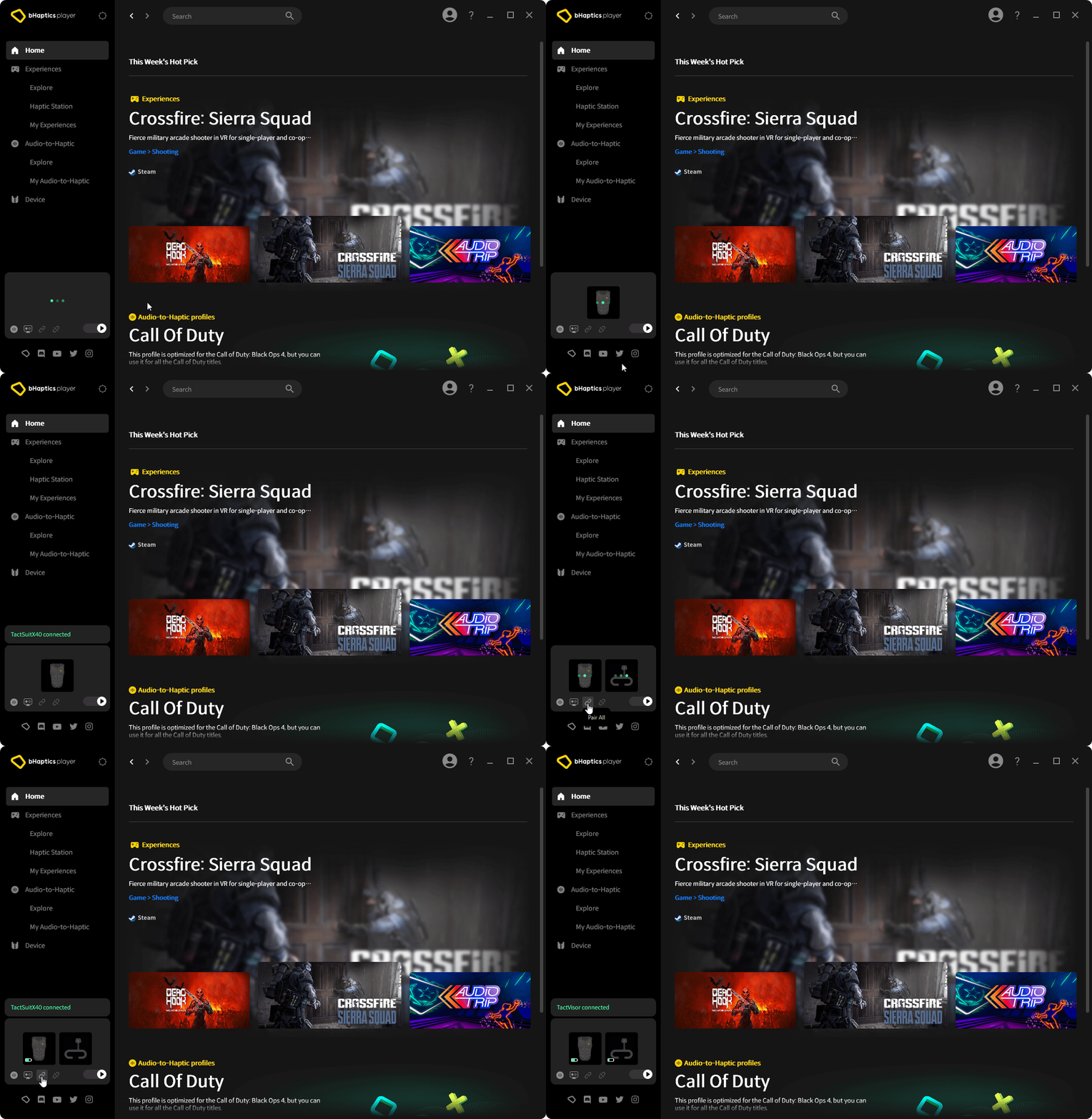
- Launch bHaptics Player on your PC and power on your Tactosy device.
- Locate the scanned device icon which will appear automatically in the Quick Control Panel.
- Right-click the device icon and select the "Pair" button.
- The LED indicator on the device will turn solid blue once it is successfully paired to your PC.
Run Natively Supported Content
Once the connection is complete, simply launch any natively supported game. You will immediately receive optimized haptic feedback mapped to specific in-game events for a truly immersive experience.
If your game doesn't have native support, you can still experience tactile feedback using our Audio-to-Haptic feature. For more detao, please visit the Audio-to-Haptic section of the Help Center.
Was this article helpful?
That’s Great!
Thank you for your feedback
Sorry! We couldn't be helpful
Thank you for your feedback
Feedback sent
We appreciate your effort and will try to fix the article
Still have problems?
If you couldn’t find what you were looking for, feel free to contact our support team.