The Audio-to-Haptics feature converts audio into haptic feedback. You can use it with any audio source, such as games, music, or videos. If your bHaptics device is not responding to audio, try the steps below.
If Using Wired Audio-to-Haptics
- Enable Wired Audio
Ensure that the Wired Audio option is enabled. If it’s turned off, you won’t receive any haptic feedback even if the audio cable is connected. When Wired Audio mode is active, you’ll see the audio cable icon appear in the Mini Player of bHaptics Player.
- Try a different audio profile
If the current profile does not match the frequency range of your content, feedback may be weak or missing. Switch to another profile in the bHaptics Player.
If Using Wireless Audio-to-Haptics
- Check for audio cables
If an audio jack or splitter is connected to your TactSuit, it will trigger wired mode and disable wireless Audio-to-Haptics. Remove any connected cable or splitter. - Enable Wireless Audio-to-Haptics
In the Mini Player of the bHaptics Player, click the music note icon to switch from game-based haptics to Audio-to-Haptics. If this is not selected, the device will not respond to audio.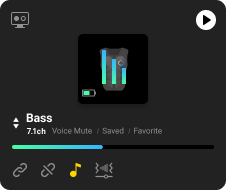
- Try a different audio profile
If the current profile does not match the frequency range of your content, feedback may be weak or missing. Switch to another profile in the bHaptics Player.
If you continue to experience issues, please email us a video showing the setup and any steps you have taken. This will help our support team diagnose the problem and assist you more effectively.
Was this article helpful?
That’s Great!
Thank you for your feedback
Sorry! We couldn't be helpful
Thank you for your feedback
Feedback sent
We appreciate your effort and will try to fix the article
Still have problems?
If you couldn’t find what you were looking for, feel free to contact our support team.