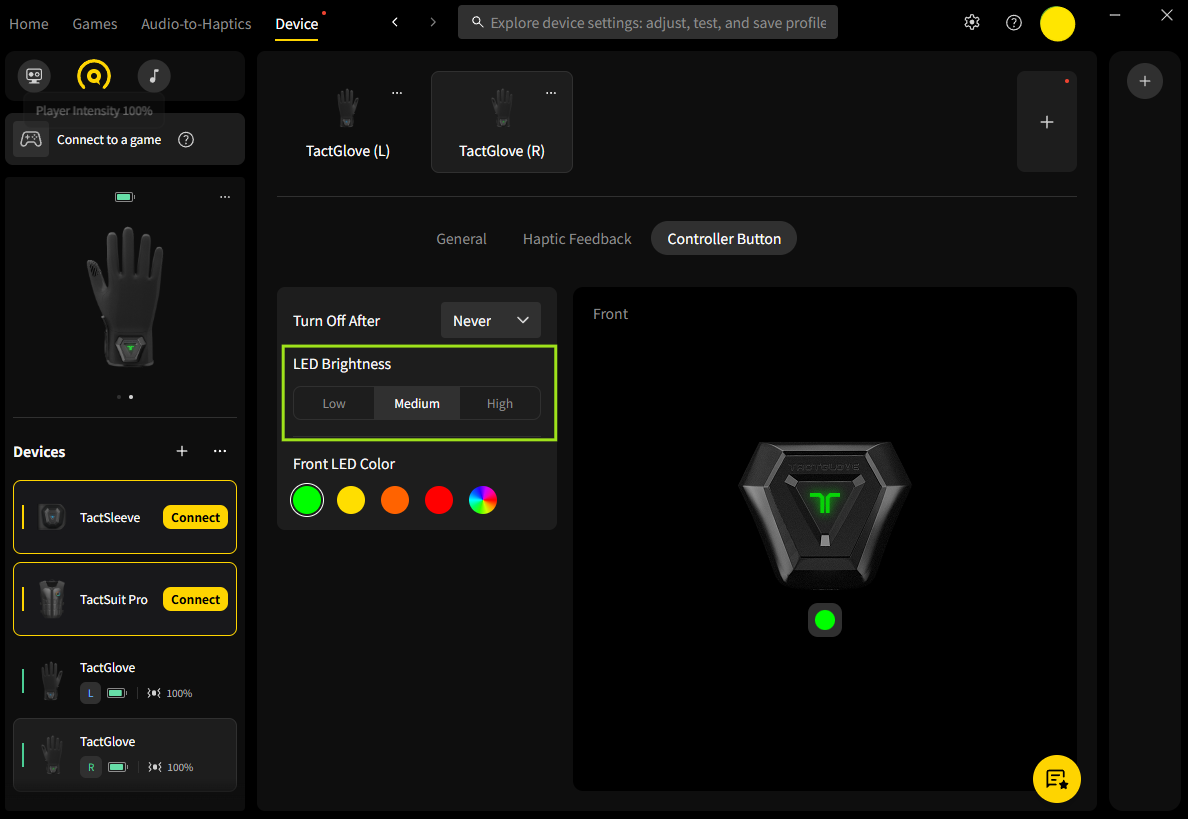
TactGlove DK2 主控制器的 LED 指示灯会用不同颜色表示设备状态。可根据环境将亮度调节为 Low、Medium 或 High 三档之一。
在 Windows PC 上调节 LED 亮度
使用 bHaptics Player for Windows 设置想要的亮度:
- 打开 bHaptics Player for PC,配对 TactGlove DK2。
- 进入 Device 标签页,点击 Controller Button 标签。
- 选择想要的亮度级别:Low、Medium 或 High。
在 Windows PC 上自定义 LED 颜色
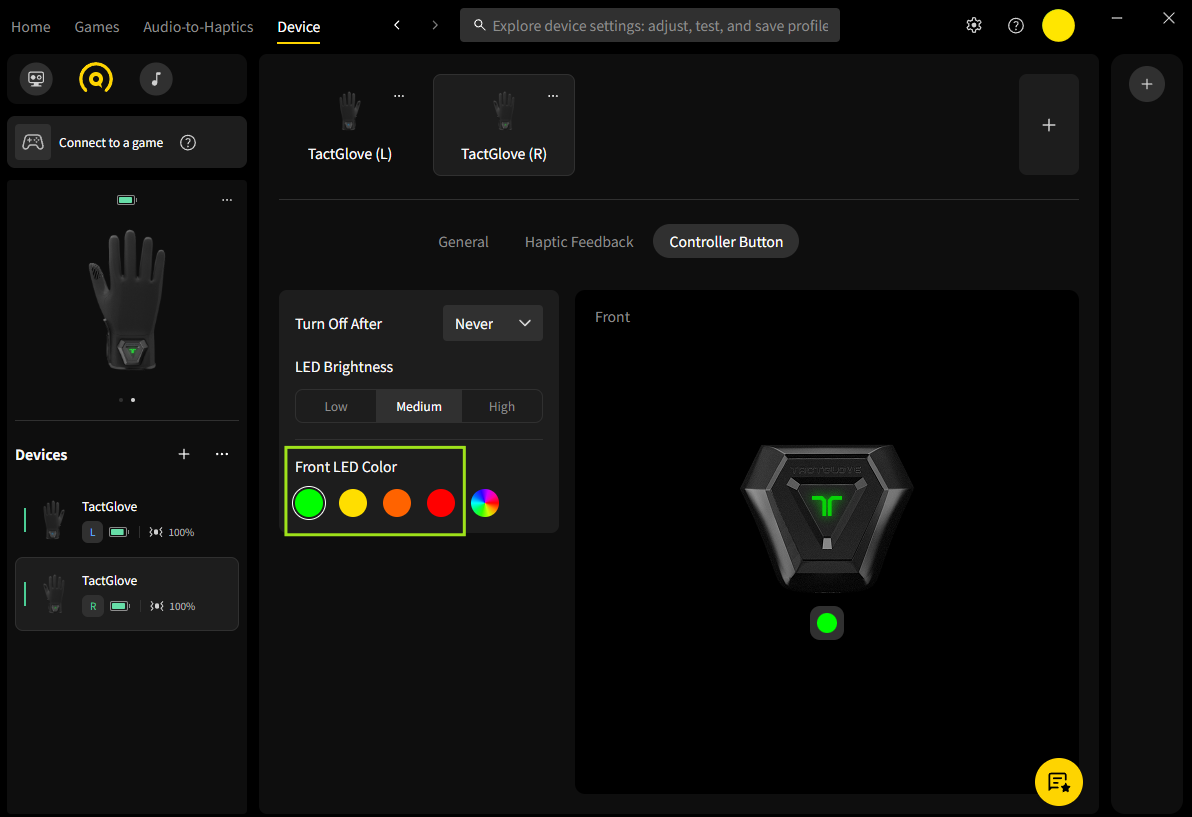
使用 bHaptics Player for PC,可自定义 TactGlove 的 LED 指示灯颜色。通过此功能可单独更改 LED 颜色,使设备个性化。
- 打开 bHaptics Player for PC,配对 TactGlove。
- 进入 Device 标签页,选择 Controller Button。
- 在 Front LED Color 设置中,您可以:
- 选择预设颜色,即时应用。
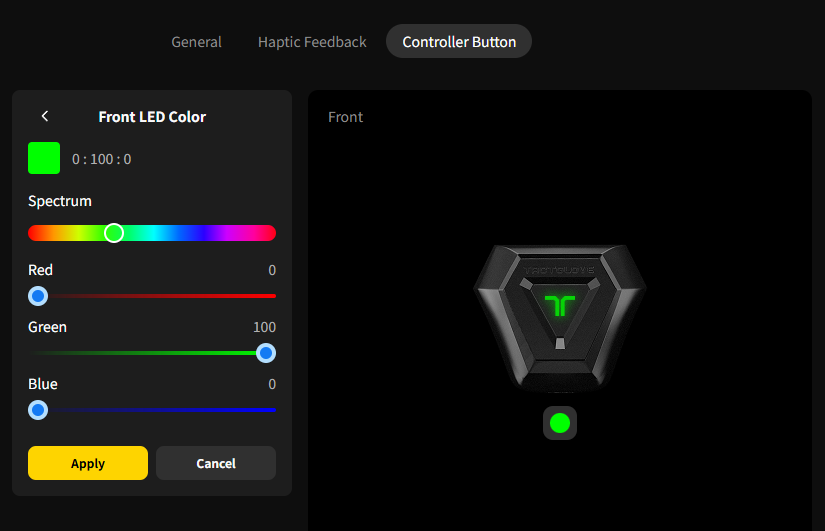
- 选择 Multi-Color 图标,用 RGB 滑块调节颜色。然后点击 Apply 应用更改。
- 选择预设颜色,即时应用。
这篇文章有帮助吗?
很好!
感谢您的反馈。
抱歉我们没能带来帮助
感谢您的反馈。
反馈已发送
感谢,我们将试着改善此文档。
Still have problems?
If you couldn’t find what you were looking for, feel free to contact our support team.