The feedback intensity of each Natively Supported Content can vary. To suit your personal preference, you can adjust the intensity of your TactSuit Pro directly through the device or by using the bHaptics Player on different platforms.
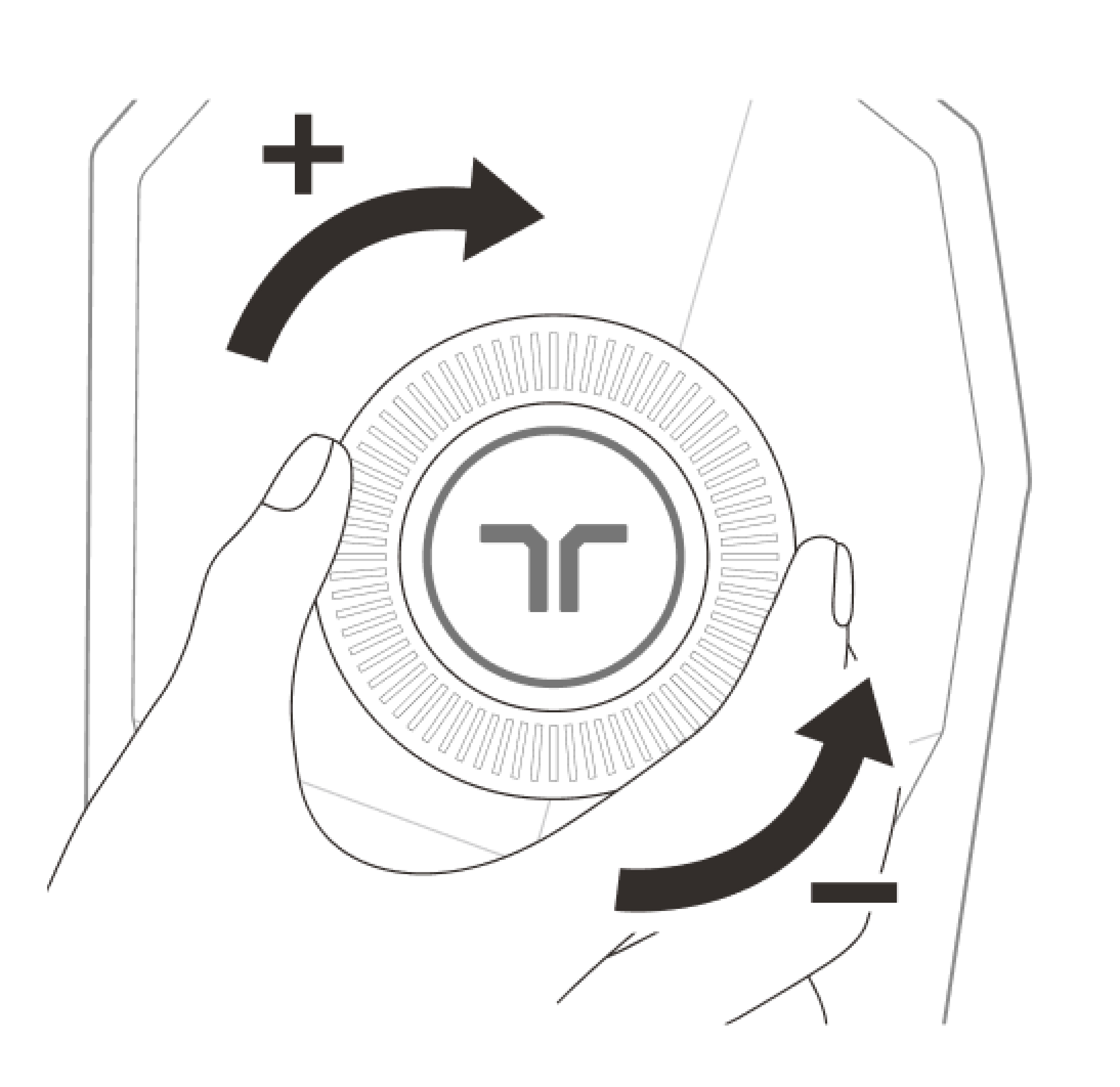
Adjusting on TactSuit Pro (Front Controller)
The TactSuit Pro features a power button on both the front and back controllers.
Rotate the wheel on the front controller clockwise to increase intensity.
Rotate counter-clockwise to decrease intensity.
Adjusting on Meta Quest
- Turn on TactSuit Pro and pair it to your Meta Quest headset trough Quick Settings > Bluetooth Pairing.
- Open bHaptics Player on your headset.
- Use the feedback intensity bar to adjust to your preferred level.
Adjusting on Windows PC
- Turn on TactSuit Pro and connect it in the Device panel of bHaptics Player.
- Click the More (⋯) icon at the top-right of the device icon and select Settings.
- In the device settings page, click the Haptic Feedback tab.
- Use the Device Intensity bar to adjust the level to your preference.
Adjusting on Mobile
- Turn on TactSuit Pro and pair it in the bHaptics Mobile App.
- Go to the Device tab and select More.
- Choose Feedback Intensity.
- Swipe left or right on the bar to adjust vibration intensity, then click the Save button to apply the settings.
Was this article helpful?
That’s Great!
Thank you for your feedback
Sorry! We couldn't be helpful
Thank you for your feedback
Feedback sent
We appreciate your effort and will try to fix the article
Still have problems?
If you couldn’t find what you were looking for, feel free to contact our support team.