You can customize the LED indicator color of your TactVisor using the bHaptics Player for PC. This lets you personalize the LED indicator to match your preferences.
If the LED Color or LED Brightness options do not appear, make sure you are using the latest version of the bHaptics Player and update it if necessary.
QUICK OVERVIEW
Adjusting LED Brightness on Windows PC
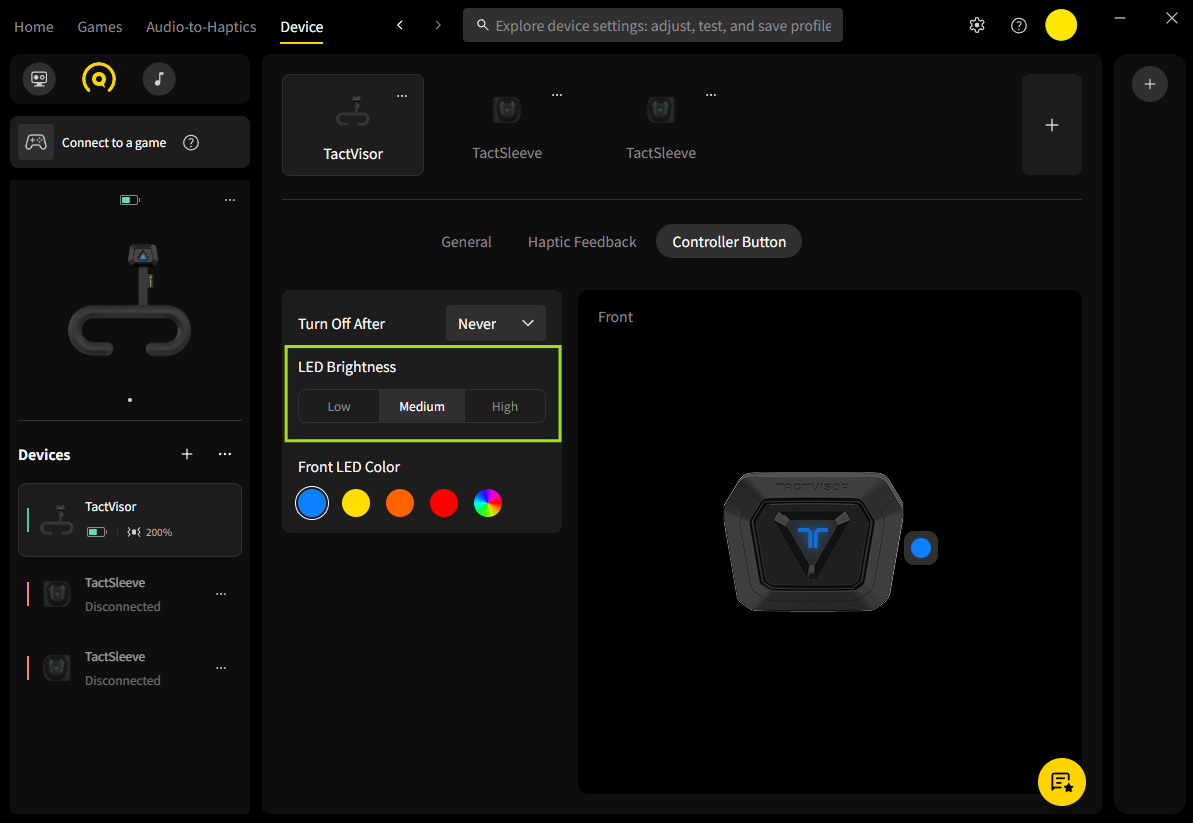
The LED indicator on the TactVisor shows the device status using different colors. You can adjust the brightness of this LED to match your preference. The brightness can be set to Low, Medium, or High.
Open bHaptics Player for PC and pair your TactVisor
Go to the Device tab and select Controller Button.
Find the LED Brightness setting.
Choose your preferred brightness level: Low, Medium, or High.
Customizing LED Color on Windows PC
You can customize the LED indicator color of your TactVisor using the bHaptics Player for PC. This feature lets you personalize your device by changing the front and back LED colors independently.
- Open bHaptics Player for PC and pair your TactVisor.
- Go to the Device tab and select Controller Button.
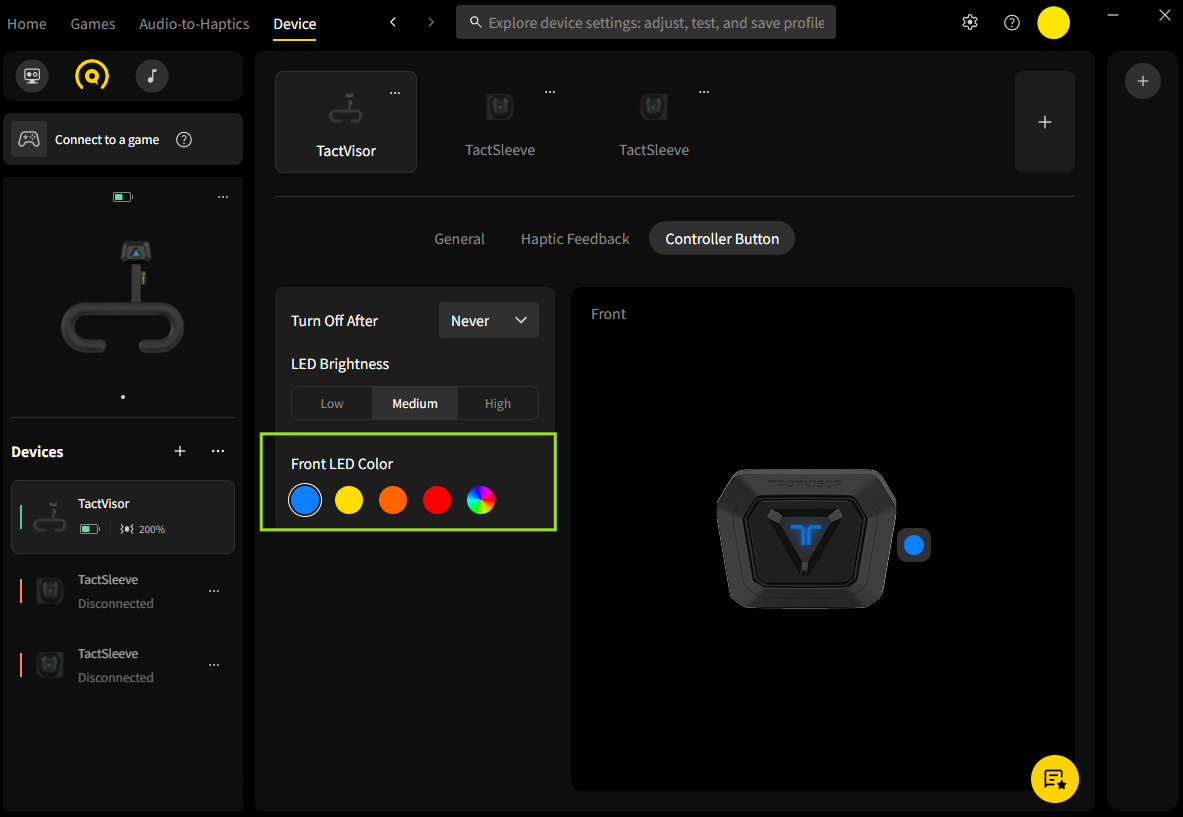
- Under the Front LED Color, you can:
- Choose from preset colors, it will apply immediately.
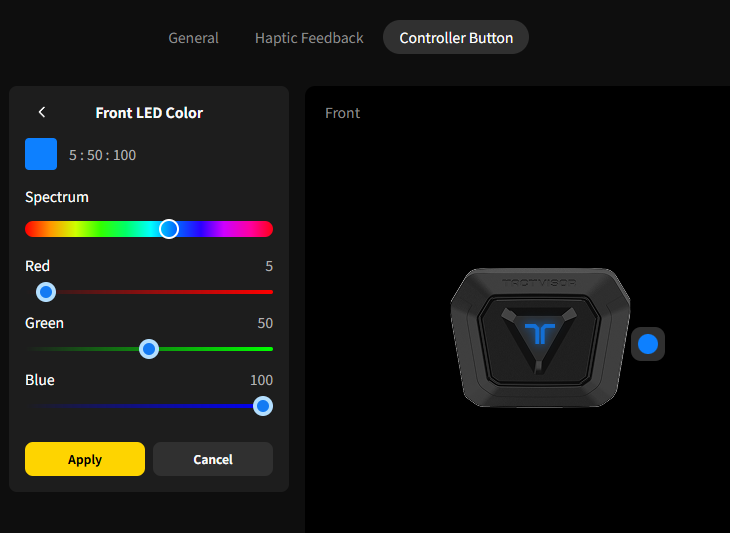
- Select Multi-Color icon and adjust the color using the sliders. Then click Apply to confirm the change.
- Choose from preset colors, it will apply immediately.
- Your selected color will apply immediately to the device.
Was this article helpful?
That’s Great!
Thank you for your feedback
Sorry! We couldn't be helpful
Thank you for your feedback
Feedback sent
We appreciate your effort and will try to fix the article
Still have problems?
If you couldn’t find what you were looking for, feel free to contact our support team.