The Tactosy for Feet consists of a pair for your feet. During first-time setup, you’ll need to specify which one is used for your left foot and which for your right foot.
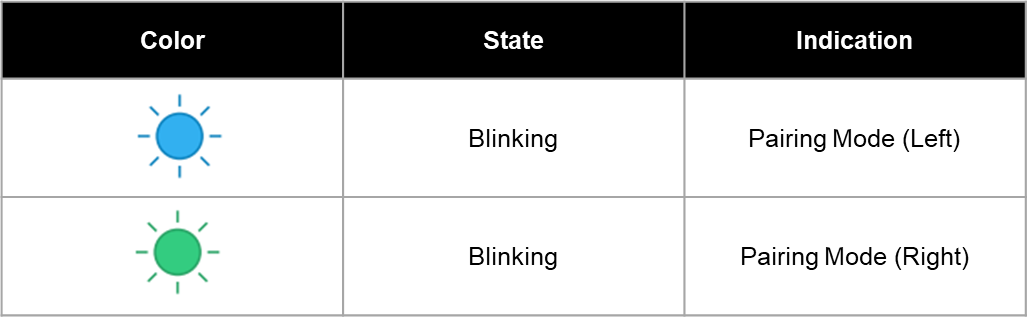
Once assigned, the device remembers its side. In Bluetooth pairing mode, the LED indicators blink distinct colors to show which side each device belongs to:
- Blue blinking: Left foot
- Green blinking: Right foot
You can switch the sides at any time using the bHaptics Player.
Switching on Meta Quest
- Pair your Tactosy for Feet with your Meta Quest headset.
- Open bHaptics Player on your headset.
- Go to the Paired tab.
- Each device is labeled “L” or “R”.
- To switch, simply click the L or R buttons as desired.
Switching on Windows PC
- Pair your Tactosy for Feet with bHaptics Player for Windows PC.
- Right-click the connected device and select Swap to Left or Swap to Right.
Switching on Mobile
- Pair your Tactosy for Feet with the bHaptics mobile app.
- Access the device detail page.
- Click the L or R button to switch sides as desired.
Was this article helpful?
That’s Great!
Thank you for your feedback
Sorry! We couldn't be helpful
Thank you for your feedback
Feedback sent
We appreciate your effort and will try to fix the article
Still have problems?
If you couldn’t find what you were looking for, feel free to contact our support team.