You can customize the haptic feedback of natively supported games in the Haptic Station of the bHaptics Player for Windows PC. This allows you to enable or disable specific in-game events and adjust their intensity for a more personalized experience.
⚠️ This feature is only available for content using the latest bHaptics SDK.
How to Access Haptic Customization
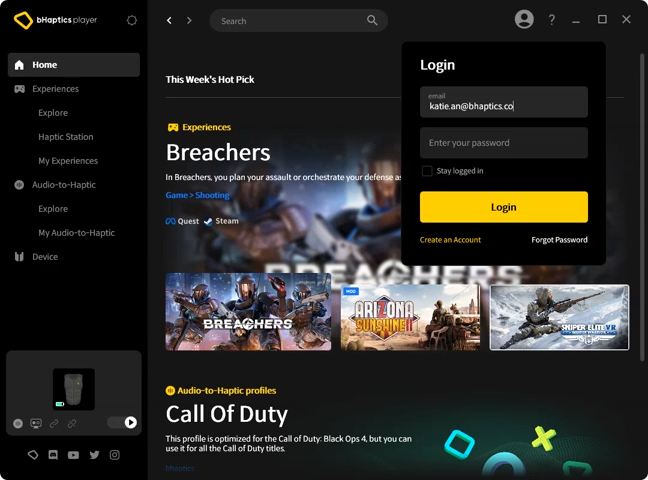
- Open bHaptics Player on your Windows PC.
- Log in to your account (required to save your settings).
- Go to Experiences > Haptic Station.
- Browse the list of supported games that allow customization.
How to Customize
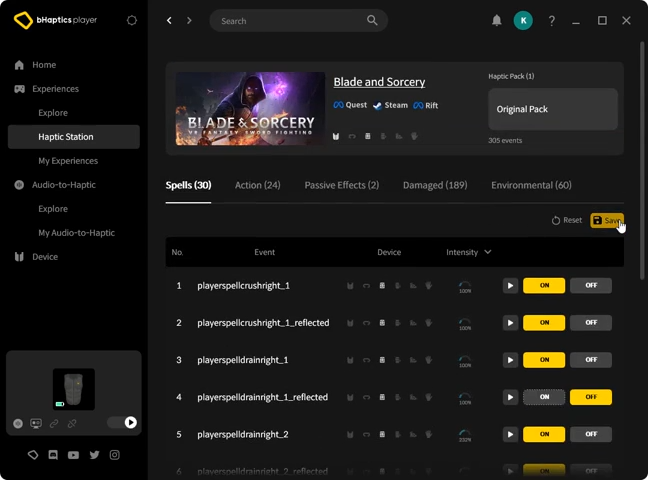
- Select a game from the list.
- Use the toggle to turn each in-game event’s haptic feedback ON or OFF.
- Adjust the intensity using the slider next to each event.
- Click Save to apply your changes.
You can find your saved customizations in the Haptic Customized Content section of the Haptic Station.
Was this article helpful?
That’s Great!
Thank you for your feedback
Sorry! We couldn't be helpful
Thank you for your feedback
Feedback sent
We appreciate your effort and will try to fix the article
Still have problems?
If you couldn’t find what you were looking for, feel free to contact our support team.